Users, roles & libraries
Tome is built around a three-tier role model — admin, member, guest — combined with a library-membership system that controls who sees which books. The intent: one Tome instance can comfortably serve a solo reader, a family with kids, or a small group of friends with overlapping but not identical libraries.
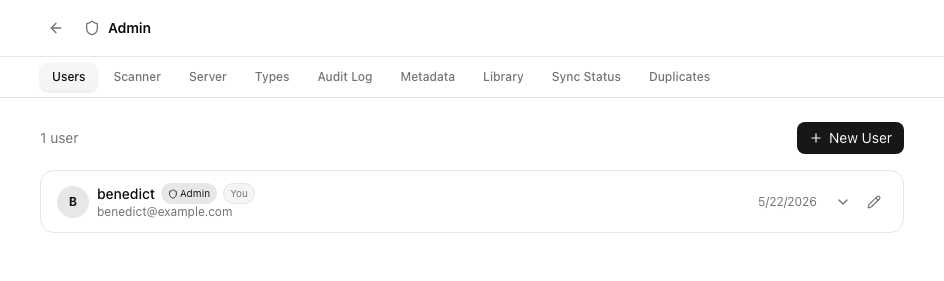
The three roles
| Capability | Admin | Member | Guest |
|---|---|---|---|
| Browse and read | yes | yes | yes |
| Download files | yes | yes | yes |
| OPDS feed | yes | yes | yes |
| KOReader sync (TomeSync) | yes | yes | — |
| Upload new books | yes | yes | — |
| Edit metadata on own books | yes | yes | — |
| Edit metadata on any book | yes | — | — |
| Manage libraries | yes | own only | — |
| Approve / reject Bindery imports | yes | — | — |
| Manage users | yes | — | — |
| Impersonate other users | yes | — | — |
| View per-user stats | yes | own | own |
Per-user book visibility
Visibility is enforced on the server. Every list endpoint filters books before returning them, so a guest literally cannot see (or download via OPDS) a private member book — not just "hidden in the UI."
Try it
Toggle a role below — the book list filters in real time using the same rules the API enforces. Note: server-side, this isn't just hidden in the UI; the API never returns the books you can't see.
The rules in words
- Admins see everything. No filtering.
- Members see: books in public libraries, books in libraries they own or are explicitly assigned to, and books they uploaded themselves.
- Guests see: books in libraries marked
is_public = true. - Books in no library at all stay visible to everyone (a member's own unfiled uploads remain private to them). To restrict a book, put it in a private library — library membership is the gate, regardless of who uploaded the book.
The dashboard has a "My books / Shared library" toggle for members so they can flip between "only books I uploaded" and "everything I have access to."
Content restrictions
Library membership decides which books an account can reach. Two per-account restrictions, set by an admin under Admin → Users, narrow that further. They are meant for the shared-instance case: a child's account, a guest you'd rather not hand the whole shelf to, an account that is really a KOReader on the family Wi-Fi.
- Hidden tags. A comma-separated list of tags. A book carrying any of them is invisible to that account everywhere — browsing, search, filters and facets, the series view, OPDS and the KOReader plugin — and is invisible even if the account uploaded it. Tags match case-insensitively, so
Adultandadultare the same restriction. A hidden book answers 404 to that account, exactly like a book that isn't there. - Downloads per day. A cap on how many files the account can fetch per UTC day, enforced on every download path: single file, bulk ZIP, OPDS and TomeSync. Blank means unlimited,
0disables downloads entirely. Only files actually served count, and the day boundary is UTC because OPDS apps and e-readers send no timezone.
Admin accounts are never restricted, and reading in the browser is not a download. Both restrictions live on the account, not on the books, so nothing changes for anyone else.
Libraries
Libraries are how books get grouped and how visibility gets scoped. Every book belongs to one or more libraries (it's a many-to-many relationship).
- Global libraries (
owner_idis null) — typically book-type buckets like "Novels", "Manga", "Comics" that Tome creates automatically when seeding book types. - User-owned libraries — created by a member or admin, optionally assigned to specific other users.
- Public libraries (
is_public = true) — visible to guests. - Private libraries — only visible to the owner, assigned users, and admins.
Quick Connect
Quick Connect is the way to sign in on a new device — a phone, a tablet, an e-reader — without typing your password into a possibly-untrusted keyboard.
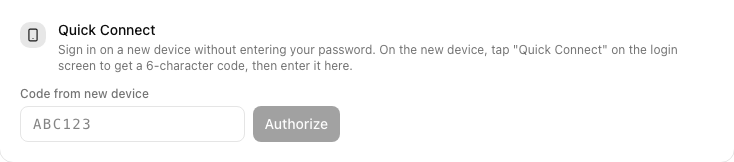
- On the new device, open Tome and click Use a Quick Connect code.
- A 6-character code appears (e.g.
JX7-Q9P). The code is good for 5 minutes. - On a device you're already signed in on, open Settings → Quick Connect, enter the code, and confirm.
- The new device gets a fresh JWT and signs in. The code is single-use.
Force password change
When an admin creates a new user, they pick a temporary password and Tome flags the usermust_change_password. On first login, the user can't access anything until they pick a new password. Reduces the "I sent it in Slack and forgot" risk.
Impersonation
Admins can impersonate any non-admin user from the user management page — useful for "the UI is broken for them, but works for me" debugging. The session banner across the top makes it obvious you're impersonating, and the audit log records both the impersonator and the impersonated account on every action taken.
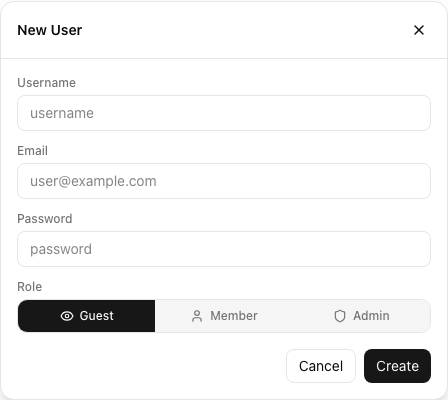
Setting up a family share — worked example
The most common multi-user setup. Parent is the admin, kids are guests.
- Sign in as the admin (you).
- In Users, create one guest account per kid. Tick Must change password on first login.
- In Libraries, create a "Kids" library, mark it
is_public = true. Add the age-appropriate books to it. - Your existing library (uploaded by you, the admin) is automatically visible to guests — adult titles will leak in unless you put them in a non-public library. Move anything you don't want kids browsing into a private member-or-admin-only library.
- Hand each kid their device, get them past the force-password-change screen, and you're done.
Setting up a friend group — worked example
Co-admins, opt-in shared shelves.
- Make each friend a member, not admin (unless you trust them to manage users).
- Each member uploads their own books. By default those books are visible only to admins and the uploader — not to other members.
- For books you want to share, the uploader creates a library, assigns the relevant friends, and adds the book to that library.
- Each member can browse "All books I have access to" or filter to "Just mine" on the dashboard.