Managing books
Books enter Tome in three ways: uploading through the browser, scanning a folder on disk, or dropping files into the Bindery. Once they're in, you can edit metadata, fetch covers, and operate on many books at once.
Uploading books
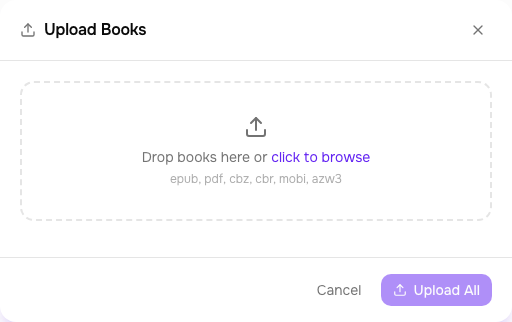
Click Upload in the top bar. Drag files into the modal or click to browse. Tome accepts EPUB, PDF, CBZ, CBR, MOBI, and AZW3. You can upload multiple files at once and assign them all to a book type before confirming.
On upload, Tome extracts whatever metadata it can from the file itself — title, author, ISBN, series, cover image. You can refine it afterward.
Scanning the library folder
If you add files directly to the /books volume (or however you mounted
TOME_LIBRARY_DIR), click Scan in the top bar to pick them up.
Tome walks the folder tree, skips files it already knows about (by content hash), and imports
new ones with metadata extracted from the filename and embedded file data.
Editing metadata
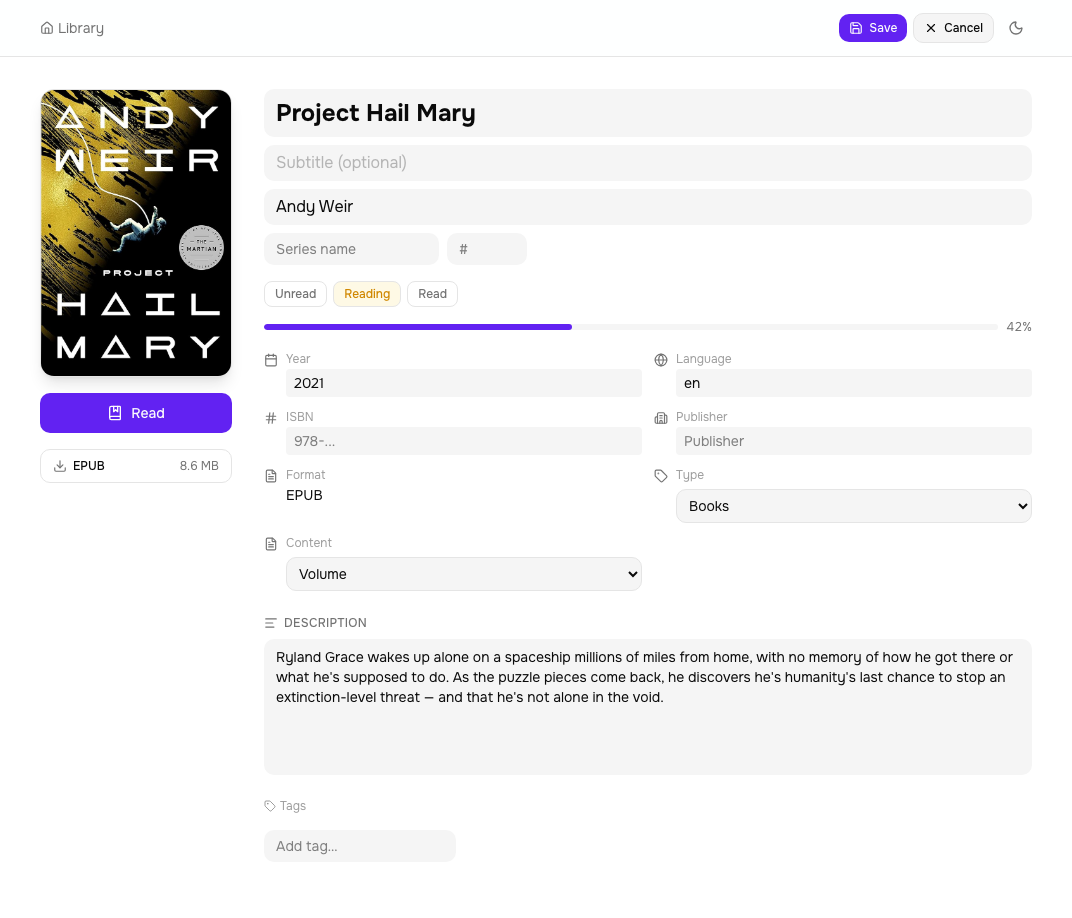
Open a book's detail page and click Edit. The inline editor lets you change title, author, subtitle, series, series index, year, publisher, language, ISBN, description, and tags. Changes save immediately.
Fetching metadata
Click Fetch metadata on a book's detail page. Tome queries Hardcover, Google Books, and Open Library, then shows you a side-by-side diff of each candidate against your current data. You pick which fields to apply — nothing changes until you confirm.
Each source is labeled (HC, Google, OpenLib) so you can see where the data comes from. Description, cover, tags, year, and publisher are the fields most often worth fetching.
Cover picker
Click the cover image on any book detail page to open the cover picker. It searches Hardcover, Google Books, and Open Library for matching covers. You can also paste a URL or upload an image from your device. The new cover applies immediately.
Bulk operations
On the dashboard, click the checkbox on any book card to enter multi-select mode. Shift-click to select a range. The toolbar shows available actions:
- Add to library — assign all selected books to a library
- Edit metadata — bulk-change author, series, book type, or tags across the selection
- Fetch metadata — fetch and review candidates for up to 100 books at once, with a review modal that lets you cherry-pick per book
- Download — download all selected books as a ZIP
- Delete — remove selected books from the library
Reading status
Every book has a per-user reading status: unread, reading, or read. Click the status badge on a book card or the detail page to cycle through them. If you're using TomeSync, status updates automatically based on your reading sessions.