Managing books
Books enter Tome in three ways: uploading through the browser, scanning a folder on disk, or dropping files into the Bindery. Once they're in, you can edit metadata, fetch covers, and operate on many books at once.
Uploading books
Click Upload in the top bar. Drag files into the modal or click to browse. Tome accepts EPUB, PDF, CBZ, CBR, MOBI, and AZW3. You can upload multiple files at once and assign them all to a book type before confirming.
On upload, Tome extracts whatever metadata it can from the file itself — title, author, ISBN, series, cover image. You can refine it afterward.
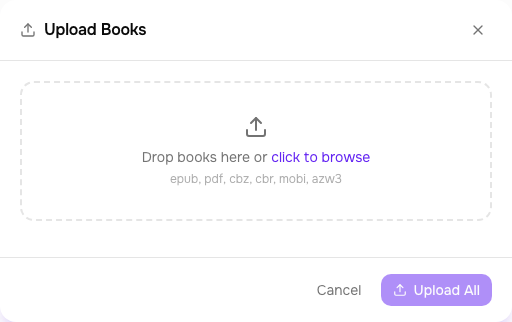
Files are hashed in the browser before anything uploads: exact duplicates of books already in the library get an "already in your library" note with a link to the existing book and are skipped — no more uploading megabytes just to find out the server already had it.
Scanning the library folder
If you add files directly to the /books volume (or however you mountedTOME_LIBRARY_DIR), click Scan in the top bar to pick them up. Tome walks the folder tree, skips files it already knows about (by content hash), and imports new ones with metadata extracted from the filename and embedded file data.
Editing metadata
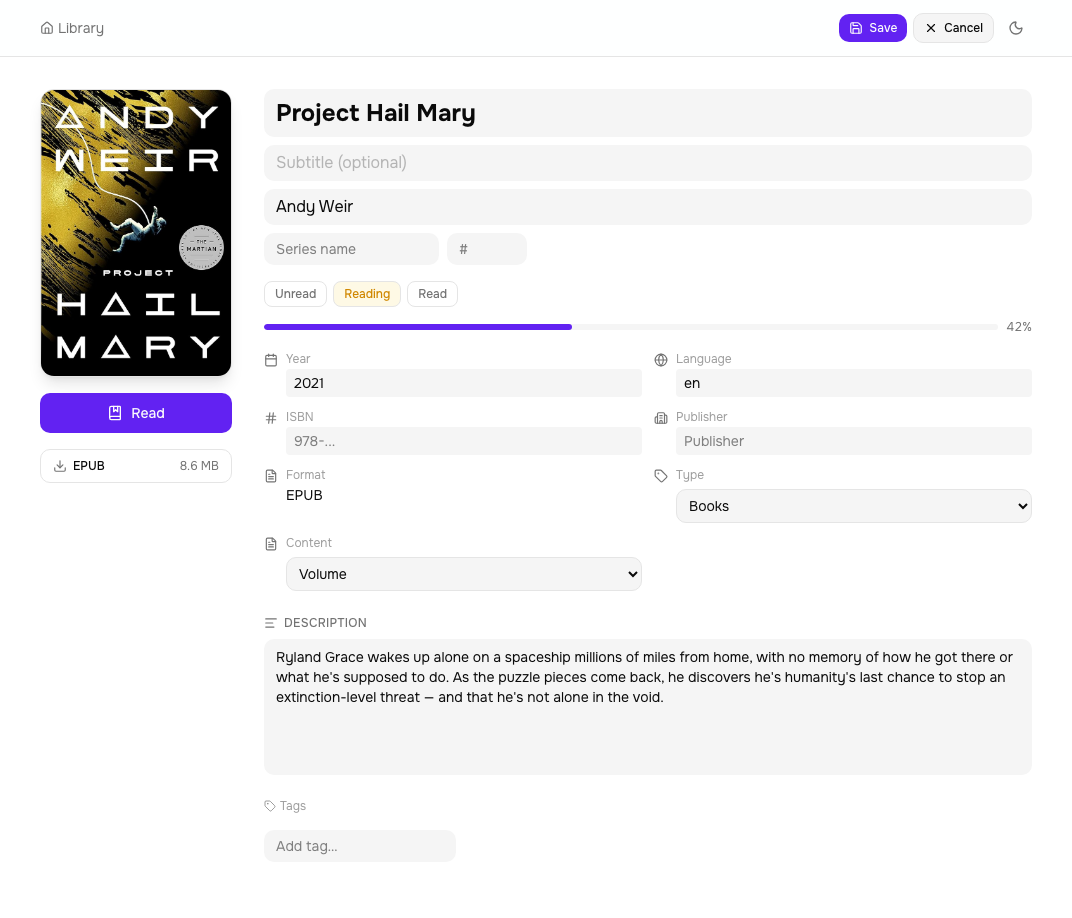
Open a book's detail page and click Edit. The inline editor lets you change title, author, subtitle, series, series index, year, publisher, language, ISBN, description, and tags. Changes save immediately.
Fetching metadata
Click Fetch metadata on a book's detail page. Tome queries Hardcover, Google Books, and Open Library in parallel — and for manga, comics and other sequential-art types,AniList too (no API key needed), which knows series, staff, genres and covers far better than the prose-first sources. Then it shows a side-by-side diff of each candidate against your current data. You pick which fields to apply — nothing changes until you confirm.
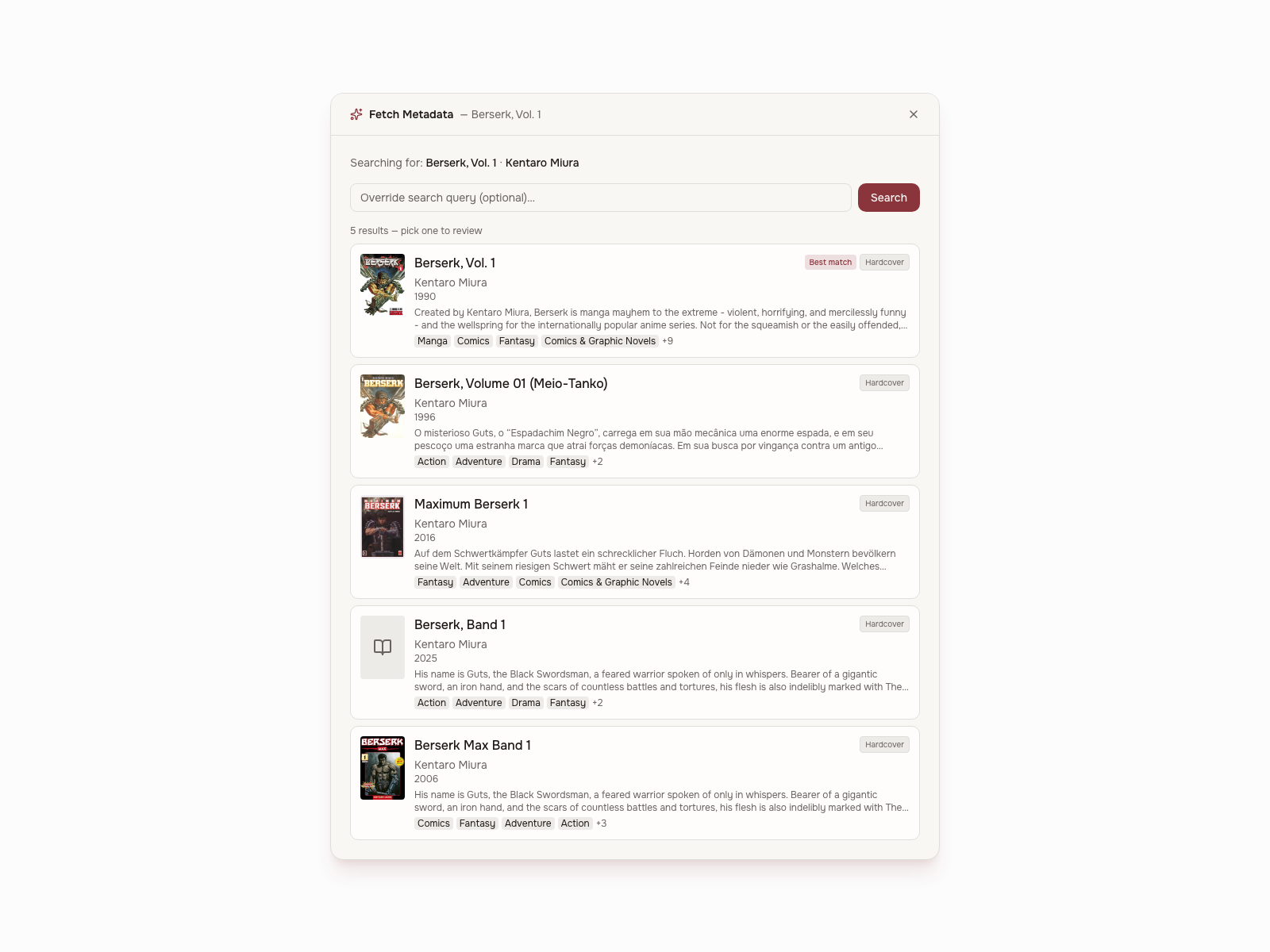
The same book seen by several sources is merged into one candidate whose missing fields are filled from the others (Hardcover knows series but not language; Google the reverse), and results are ranked by relevance — the right volume of a series beats the wrong volume from a "better" source, and a light novel won't match its manga adaptation. The top result carries a Best match chip, and each candidate is labeled with its source. If a source is rate-limited or down, the dialog says so instead of pretending the book doesn't exist.
Description, cover, tags, year, and publisher are the fields most often worth fetching. Applying a candidate never wipes tags you added by hand.
Cover picker
Click the cover image on any book detail page to open the cover picker. It searches Hardcover, Google Books, and Open Library for matching covers. You can also paste a URL or upload an image from your device. The new cover applies immediately.
Bulk operations
On the dashboard, click the checkbox on any book card to enter multi-select mode. Shift-click to select a range. The toolbar shows available actions:
- Add to library — assign all selected books to a library
- Edit metadata — bulk-change author, series, book type, or tags across the selection
- Fetch metadata — fetch and review candidates for up to 100 books at once, with a review modal that lets you cherry-pick per book
- Download — download all selected books as a ZIP
- Delete — remove selected books from the library
Command palette
Press Cmd+K (Ctrl+K) anywhere in Tome to jump straight to a book, series, author, or page — full-text search with covers, entirely keyboard-driven. The header search box hints it, and it's listed in the? shortcuts help.
Filtering
The dashboard filter bar narrows the grid by series, author,tag, format, and language, plus reading status and rating. Filters combine, show as removable chips, and live in the URL, so any filtered view can be saved as a Shelf that re-populates itself.
The Language dropdown appears once your catalogue holds more than one language. Tome doesn't detect language from a book's text — it reads the language each file declaresin its embedded metadata (an EPUB's <dc:language>, a CBZ's LanguageISO) when it's scanned or uploaded. Those declared values are inconsistent across files, soen, eng, en-US, and English are all folded to a single "English" entry. Matching is a fixed lookup of ISO-639 codes and English names; an unrecognized language still groups correctly but shows as a short code until it's added to the table.
Reading status
Every book has a per-user reading status: unread, reading, orread. Click the status badge on a book card or the detail page to cycle through them. If you're using TomeSync, status updates automatically based on your reading sessions.
Ratings & reviews
Rate books on a 1–5 star scale in half-star steps — click the left or right half of a star for a 3.5 or 4.5 — with an optional written review. Ratings areper user and private to you — everyone keeps their own.
- Per book — the detail page has a star rating and a review field; both auto-save, and the review collapses to a tidy quote (with an edit affordance) once written.
- On book cards — your stars show across the grid. You can sort by "My Rating" and filter the grid to Rated, 3+, 4+, or 5 stars.
- Per series — rate a whole series from its page. A series rating is inherited by every volume you haven't rated individually (your own volume rating always wins); a series' shown rating is your explicit rating if set, otherwise the average of your volume ratings. The "No Series" group can't be rated.
Ratings also sync both ways with KOReader's native Book status screen — see theKOReader plugin docs (KOReader itself is whole-star: the plugin rounds a pulled half-star for the device but never pushes the rounded value back). And with a linked Hardcover account, ratings — half-stars included — flow to your public profile too.