Highlights
The passages you highlight while reading in KOReader sync into Tome, and theHighlights page gathers all of them into one place — a personal commonplace book you can search, browse by book, and export. Nothing to set up beyondthe KOReader plugin: highlight a passage on your device, sync, and it shows up here.
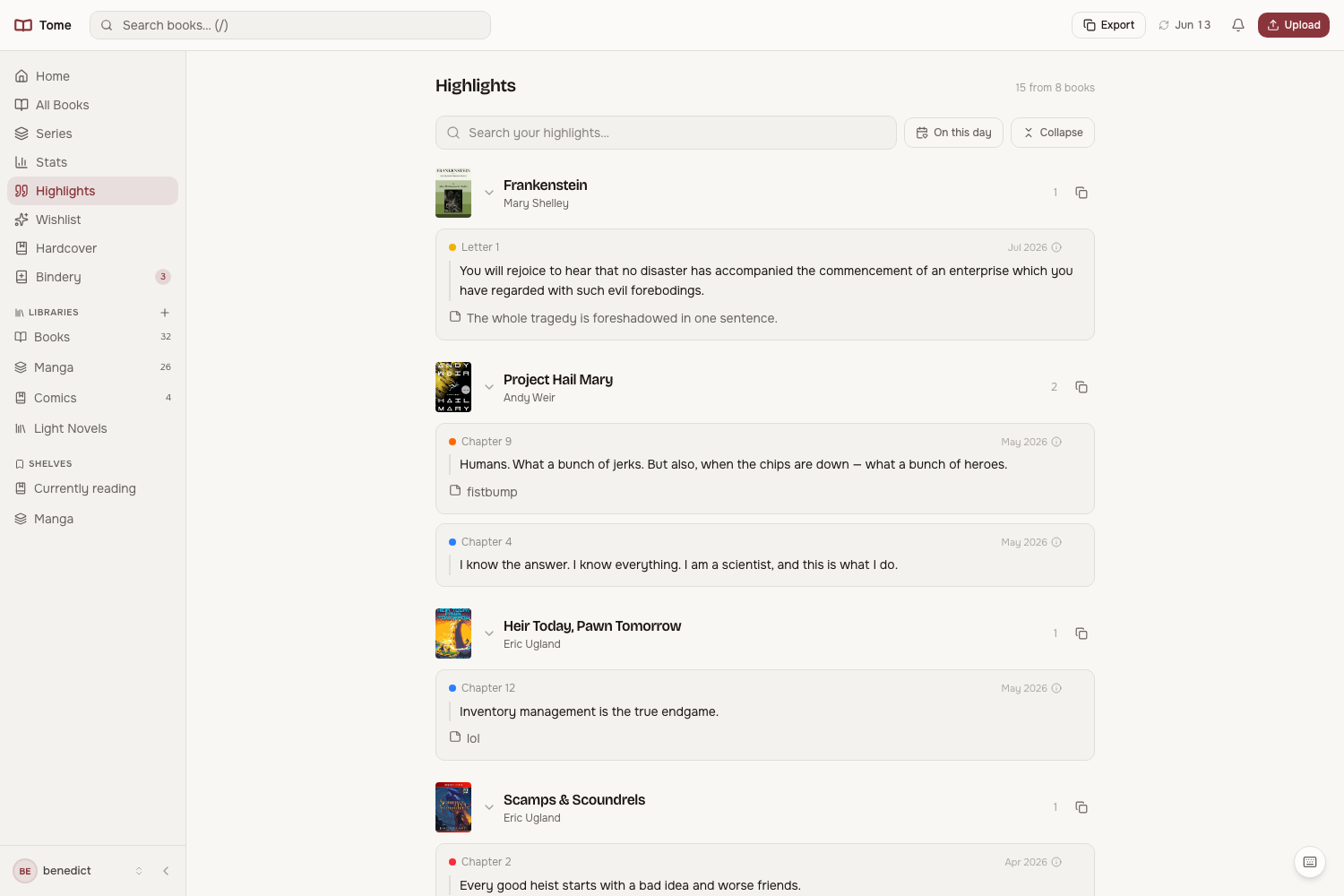
Browsing by book
Open Highlights from the sidebar. Your highlights are grouped under the book they came from — cover, title, author, and a count — with each highlight shown as a quote card, along with its chapter and the note you attached, if any. Click a book's title to jump to its detail page. Each book can be collapsed to its header so you can scan a large collection quickly, and Collapse all / Expand all in the toolbar folds the whole list at once.
Searching
The search box filters across every highlight in your library at once — matching the highlighted text, your notes, the chapter, and the book title — and the matching words are marked in the results. Searching automatically opens any collapsed books so nothing is hidden, and restores your collapsed view when you clear it.
On this day
Toggle On this day to see only the highlights you made on today's date in previous years — a small, pleasant way to rediscover what struck you a year or two ago. TheHome tab also surfaces a single "on this day" highlight as a quote card; on a day with none, it shows a random highlight instead.
Editing and deleting
Every highlight card has a pencil and a trash icon (hover, or always visible on touch). The pencil edits — or adds — the note on any highlight, including ones made in KOReader; the edit wins on your devices at their next sync, exactly like an edit made on another device. Deleting removes the highlight everywhere: the server keeps a tombstone so the device drops its copy on the next sync instead of re-uploading it.
Dates & details
Each card shows when the highlight was made, with a hover for the full detail — the exact time, the chapter, the highlight colour, and when it first synced to Tome. When your highlights use more than one KOReader colour, a small coloured dot on each card reflects the colour you chose on the device; if you only ever use one colour, the dots are hidden so they don't add noise.
Exporting
Export copies your highlights as Markdown — a heading per book, each passage as a block quote with its note — ready to paste into your notes app, a wiki, or a journal. The copy icon on each book exports just that book's highlights. Export reflects whatever you're currently viewing, so an active search exports only the matching highlights.
Per-book highlights
Every book's detail page also has its own Highlights & Notes section showing just that book's highlights — handy when you're looking at one title. The Highlights page is the library-wide view of the same data. See KOReader pluginfor how syncing works and the reader for reading inside Tome.