Send to device
Send to device emails a book as an attachment straight to your e-reader — a Kindle's Send-to-Kindle address, a Kobo, or any plain inbox. Set up SMTP once on the server, save a device address per user, and send single books or whole selections from the web UI.
1. Configure SMTP (admin, one-time)
Sending is off until the server has SMTP credentials. Set them as environment variables — they're never stored in the database. Until they're present, the feature shows a setup guide instead of the send UI.
Fastmail
Create an app password scoped to SMTP under Settings → Privacy & Security → App passwords.
TOME_SMTP_HOST=smtp.fastmail.com
TOME_SMTP_PORT=587
TOME_SMTP_USER=you@fastmail.com
TOME_SMTP_PASSWORD=your-app-passwordGmail
Use an App Password, not your normal account password (Gmail blocks plain-password SMTP). Gmail allows ~500 sends/day.
TOME_SMTP_HOST=smtp.gmail.com
TOME_SMTP_PORT=587
TOME_SMTP_USER=you@gmail.com
TOME_SMTP_PASSWORD=your-app-passwordAny other provider
TOME_SMTP_HOST=smtp.example.com
TOME_SMTP_PORT=587
TOME_SMTP_USER=tome@example.com
TOME_SMTP_PASSWORD=secret
TOME_SMTP_FROM=tome@example.com # optional, defaults to TOME_SMTP_USER| Variable | Default | Purpose |
|---|---|---|
TOME_SMTP_HOST | — | SMTP server hostname (enables the feature) |
TOME_SMTP_PORT | 587 | SMTP port |
TOME_SMTP_USER | — | SMTP username for auth |
TOME_SMTP_PASSWORD | — | SMTP password / app password |
TOME_SMTP_FROM | TOME_SMTP_USER | "From" address recipients see |
TOME_SMTP_USE_TLS | true | STARTTLS (port 587) |
TOME_SMTP_USE_SSL | false | Implicit SSL (port 465) |
TOME_SMTP_DAILY_LIMIT | 50 | Per-user sends/day (0 = unlimited) |
The feature is considered "configured" once TOME_SMTP_HOST,TOME_SMTP_USER, and TOME_SMTP_PASSWORD are all set. See the full env var list in Configuration.
2. Add a device
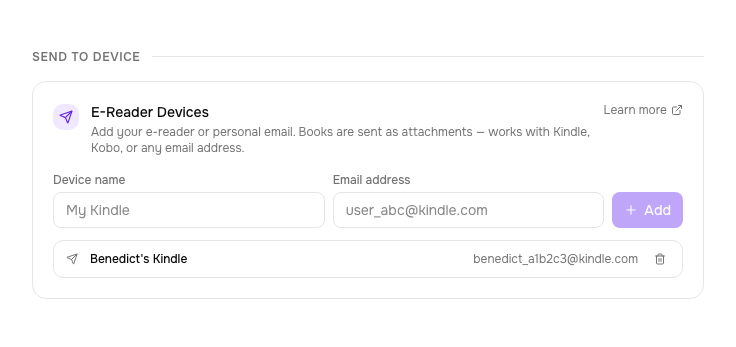
Each user adds their own devices under Settings → Send to Device: a name and an email address. Up to 10 per user.
3. Send a book
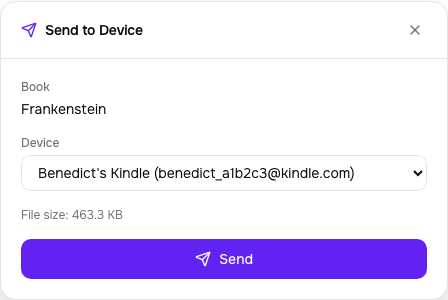
Open any book and click Send to Device below the download buttons. Pick a device, pick a format if the book has more than one, and send.
Sending in bulk
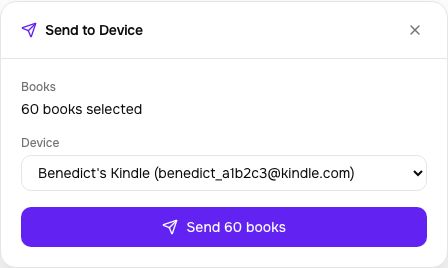
On the dashboard, click Select, choose books, then Send to Device in the action bar. Up to 25 books per send; each arrives as its own email. Tome reuses a single SMTP connection for the whole batch.
Admin: Email tab
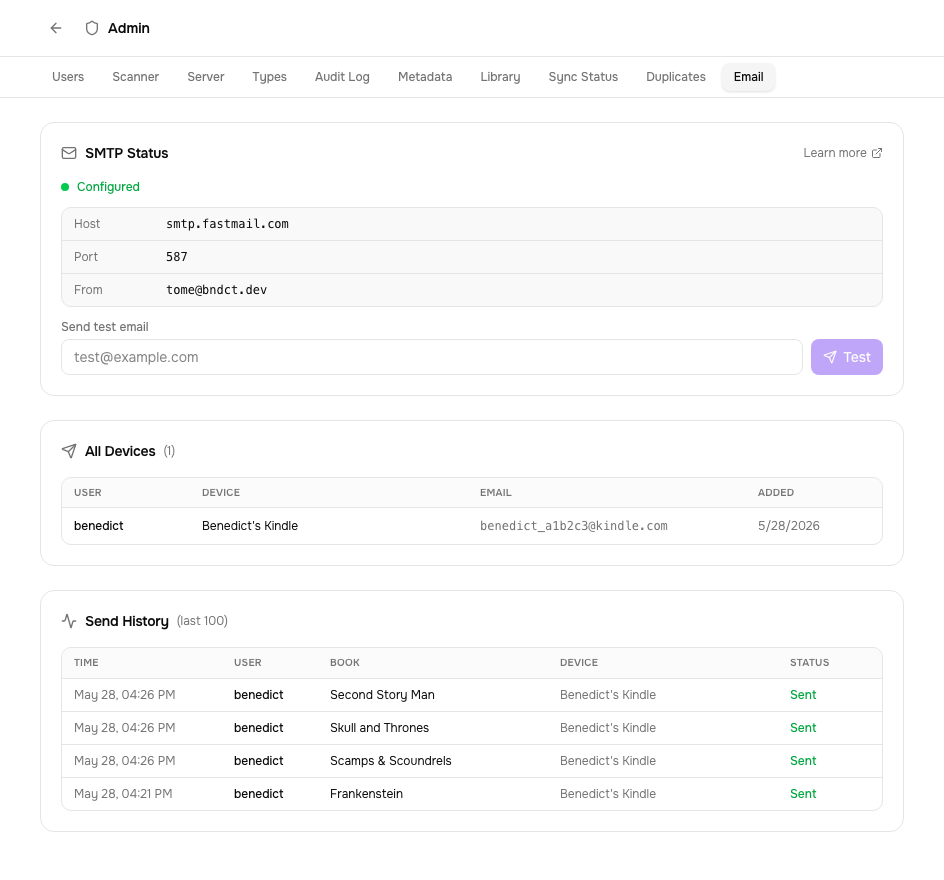
The Email tab in /admin shows SMTP status, lets you send a test email, lists every user's devices, and shows recent send history (who sent what, where, and whether it succeeded).
Limits & behaviour
- Attachment size: 25 MB per book. Larger files are rejected with a clear error — most SMTP relays cap here even when the e-reader allows more.
- Daily limit: 50 sends per user per day by default (
TOME_SMTP_DAILY_LIMIT). Set to0for unlimited. - Format: the book is sent as-is (EPUB, PDF, MOBI, CBZ) with Tome's metadata embedded — no conversion.
- Filename: the attachment is named after the book title, so it lands in your library with a clean name.